
PICK YOUR AI THEME TO GET STARTED

OPTIONS & VARIANTS
Options let buyers choose a size, colour or material. Variants give every combination its own price, SKU and stock.
1. ADD YOUR OPTIONS
In the product's Settings, open the VARIANTS panel. Add tags to the options you need: Colours, Material, Sizes, Length, Width, Height, Diameter, Depth, Weight (Grams), Volume, Style, Brand or Finish.
2. COLOUR AND MATERIAL SWATCHES
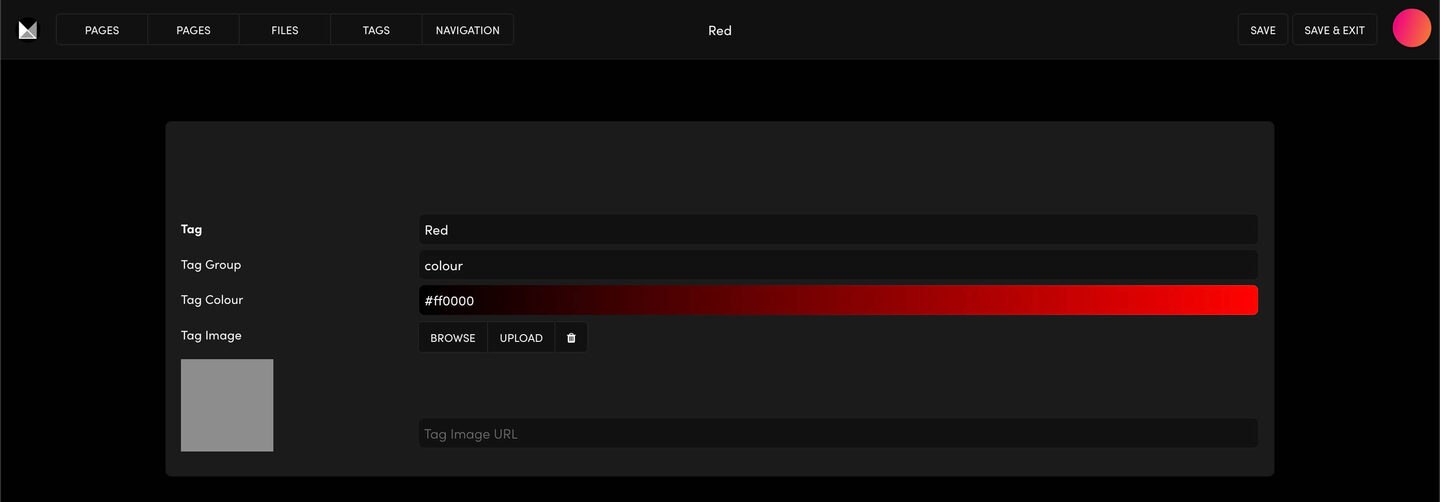
Colours show as colour swatches and Material as picture swatches. Click EDIT TAG next to the option, then give each tag its Tag Colour (a hex code like #ff0000) or its Tag Image. Every other option shows as a dropdown.
3. GENERATE VARIANTS
Click GENERATE VARIANTS. MOBLE lists every combination. For example, 4 colours × 2 materials × 4 sizes makes 32 variants.
4. PRICE, SKU AND STOCK
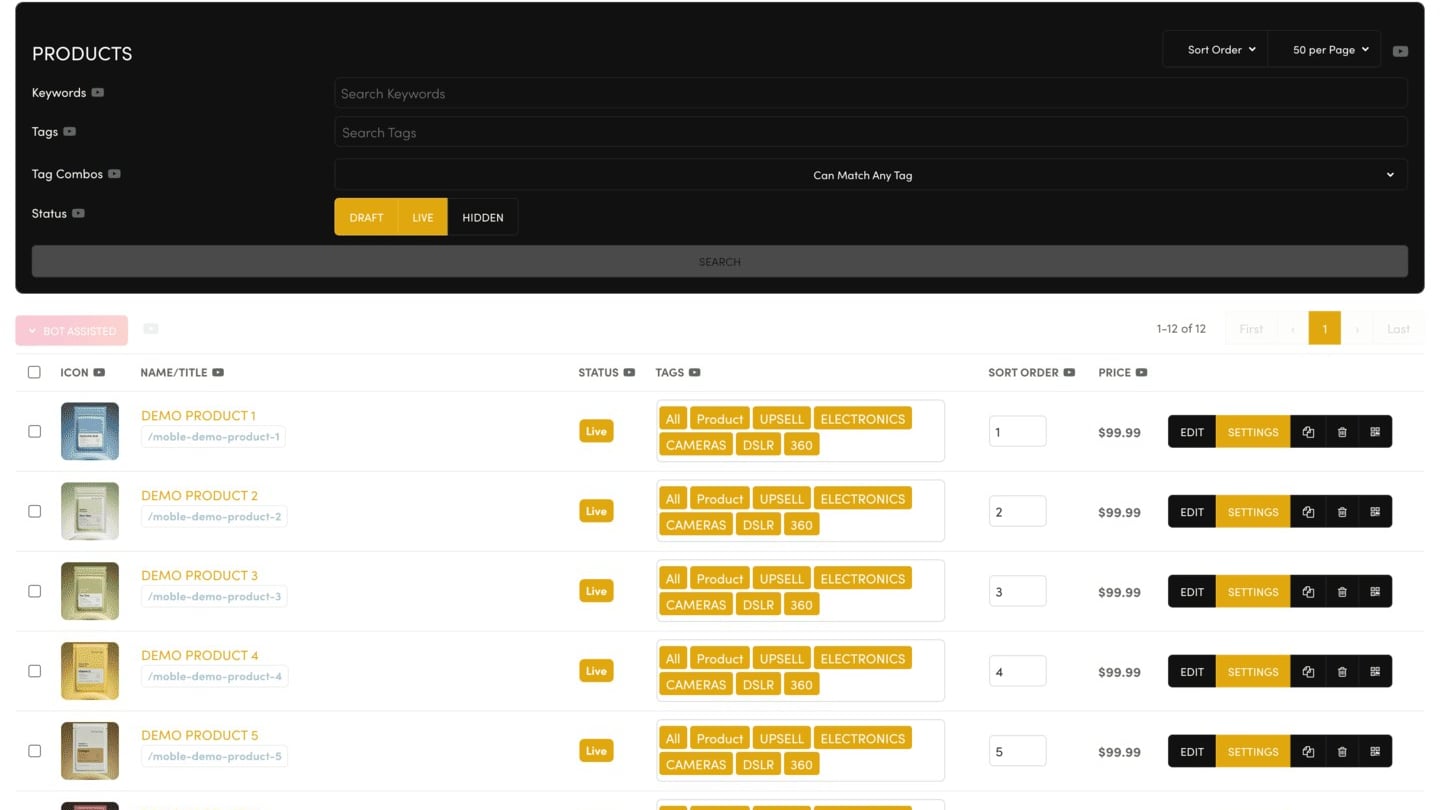
Each variant row has a SKU, Inventory and Price. To update many at once, filter by a tag (say XL), tick the rows, type the price in the top row and click Submit. Then click SAVE.
Put your lowest variant price in the product's main Price field.
Tip: Mo, the AI assistant on your Products screen, can fill in the price, SKU and stock for every variant. Just tell it which options cost more.
RELATED HELP

Play before you Pay?
GETTING AROUND
SUPPORT
AI SALES LINE
AI SUPPORT LINE
ENQUIRIES
team@moble.com.au
GET A QUOTE
A Web Builder for Design. A CMS for Business. We serve all businesses from SME's to Enterprise. Talk with us for AI development, custom website design, website development, ecommerce websites, directories, intranets and social networks.
PRIVACY | WEBSITE TERMS | PLATFORM TERMS | © 2026 MOBLE PTY LTD