
PICK YOUR AI THEME TO GET STARTED

ADD A PRODUCT
Products are edited in their Settings, not in the page editor.
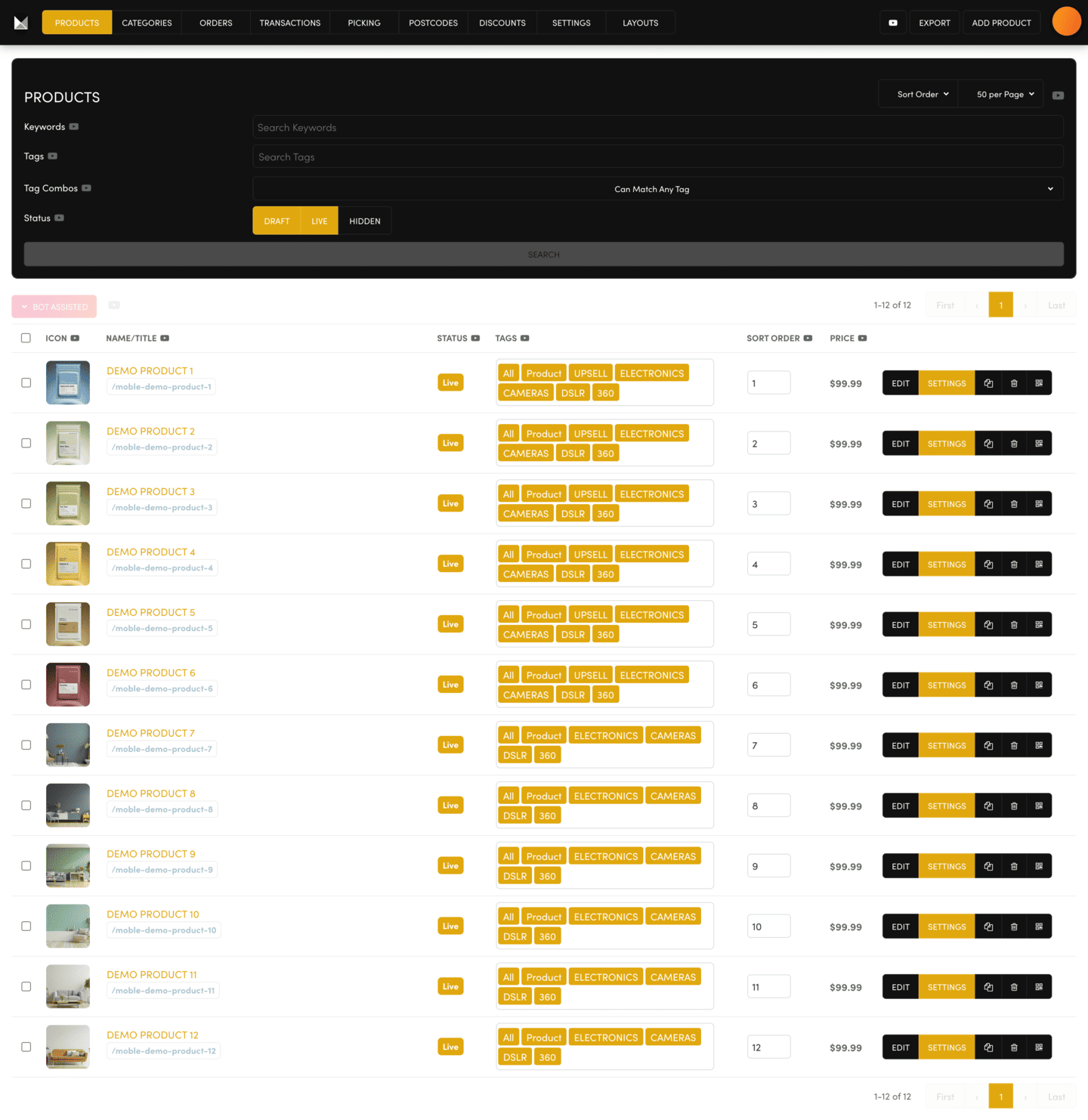
Go to Ecommerce and open the PRODUCTS tab. Click ADD PRODUCT for a new product, or SETTINGS on an existing one.
THE FIELDS THAT MATTER MOST
- Page Name and Page URL — the product's name and web address.
- Page Status — Live shows it in your shop. Draft keeps it off your site.
- Price — what buyers pay. If your options change the price, enter the lowest price here.
- Summary — the most important text. It shows on the product page and in your shop grids. Most shops fill in the Summary and leave Description and Body blank.
- Page Icon — the picture on the product's card in your shop. Gallery Images are the pictures on the product page.
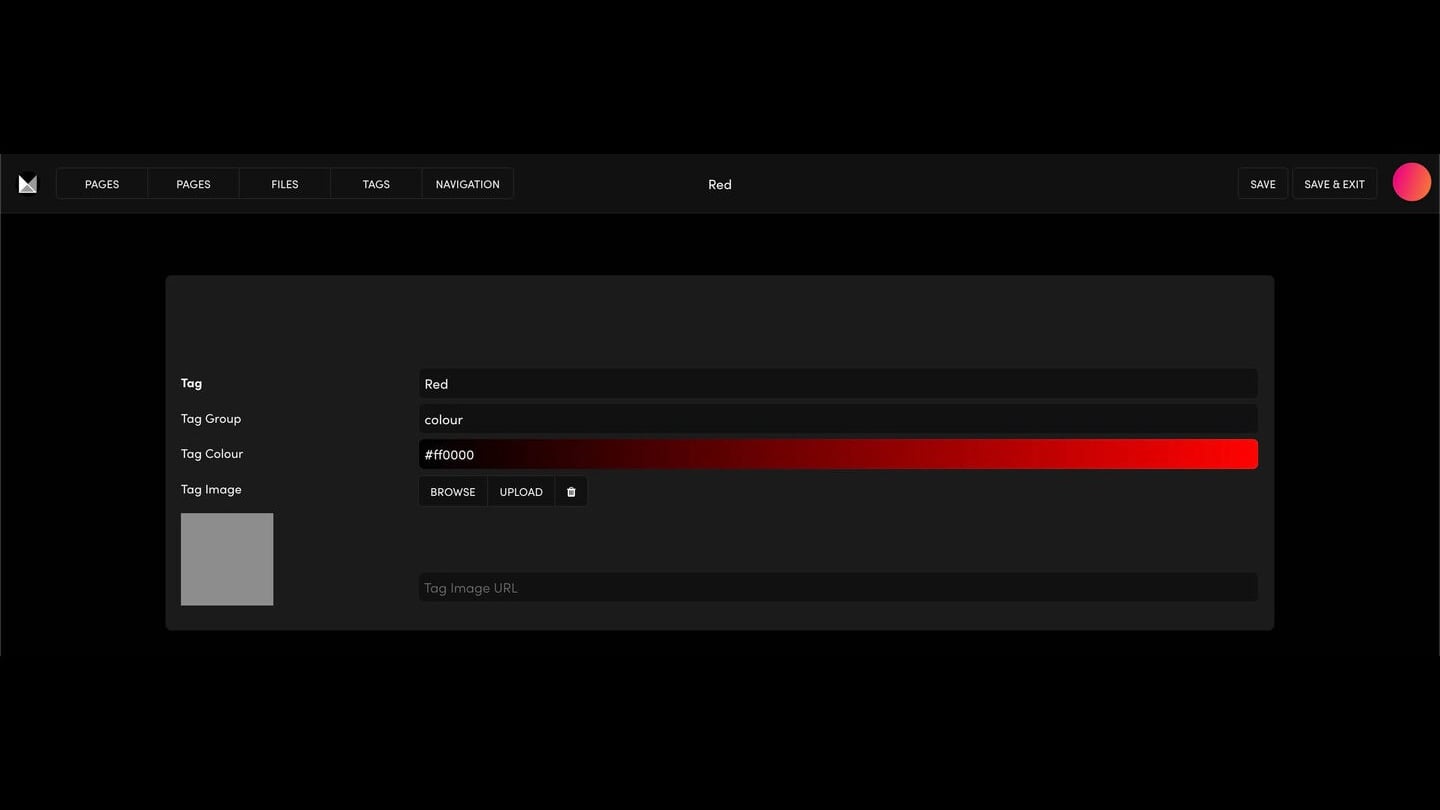
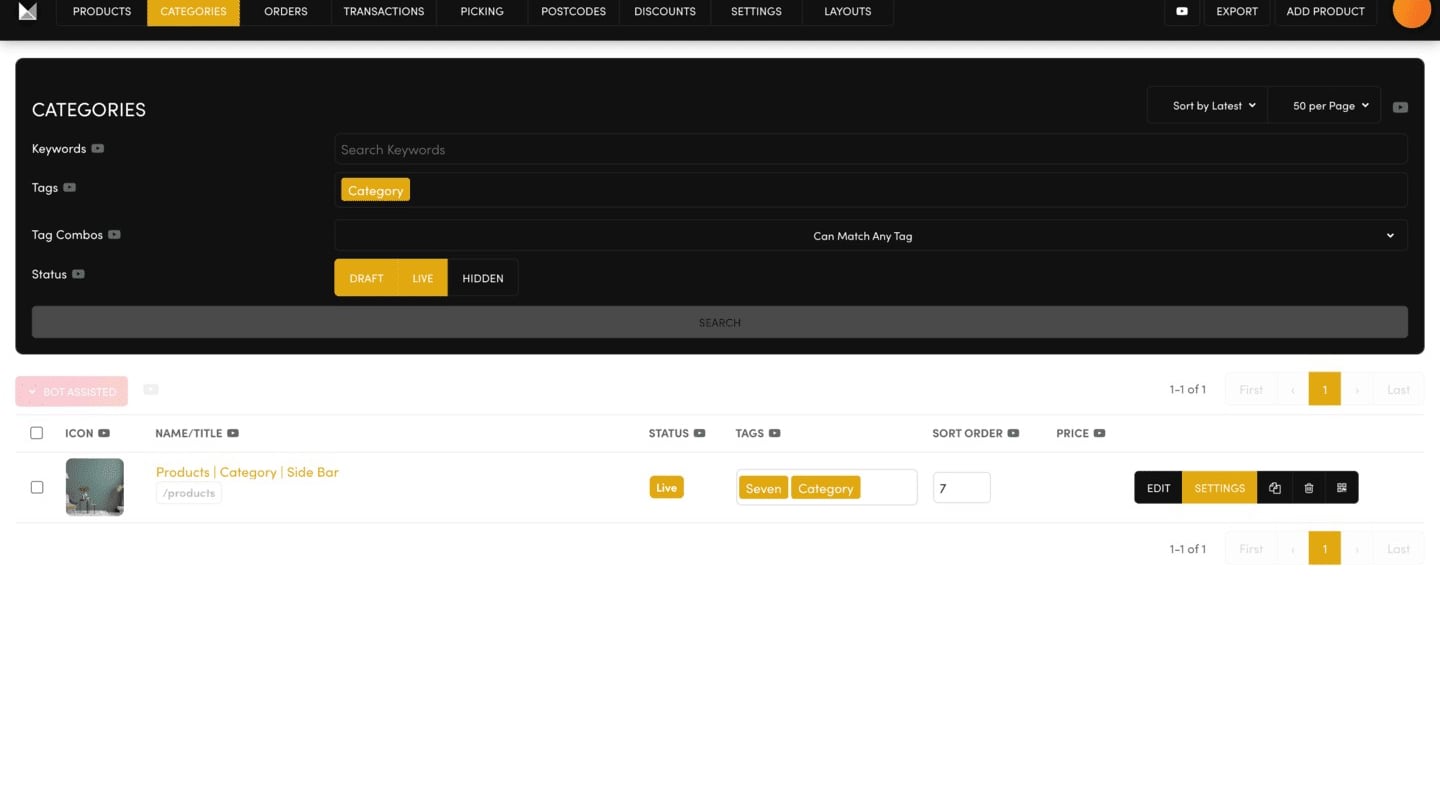
- Tags — decide which shop grids and categories the product appears in.
Leave a field blank and its label won't show on the product page.
SAVE, THEN CLONE
Nothing is kept until you click SAVE or SAVE & EXIT. To add your next product fast, click CLONE. Every setting and option is copied, so you only change the name, summary and pictures.
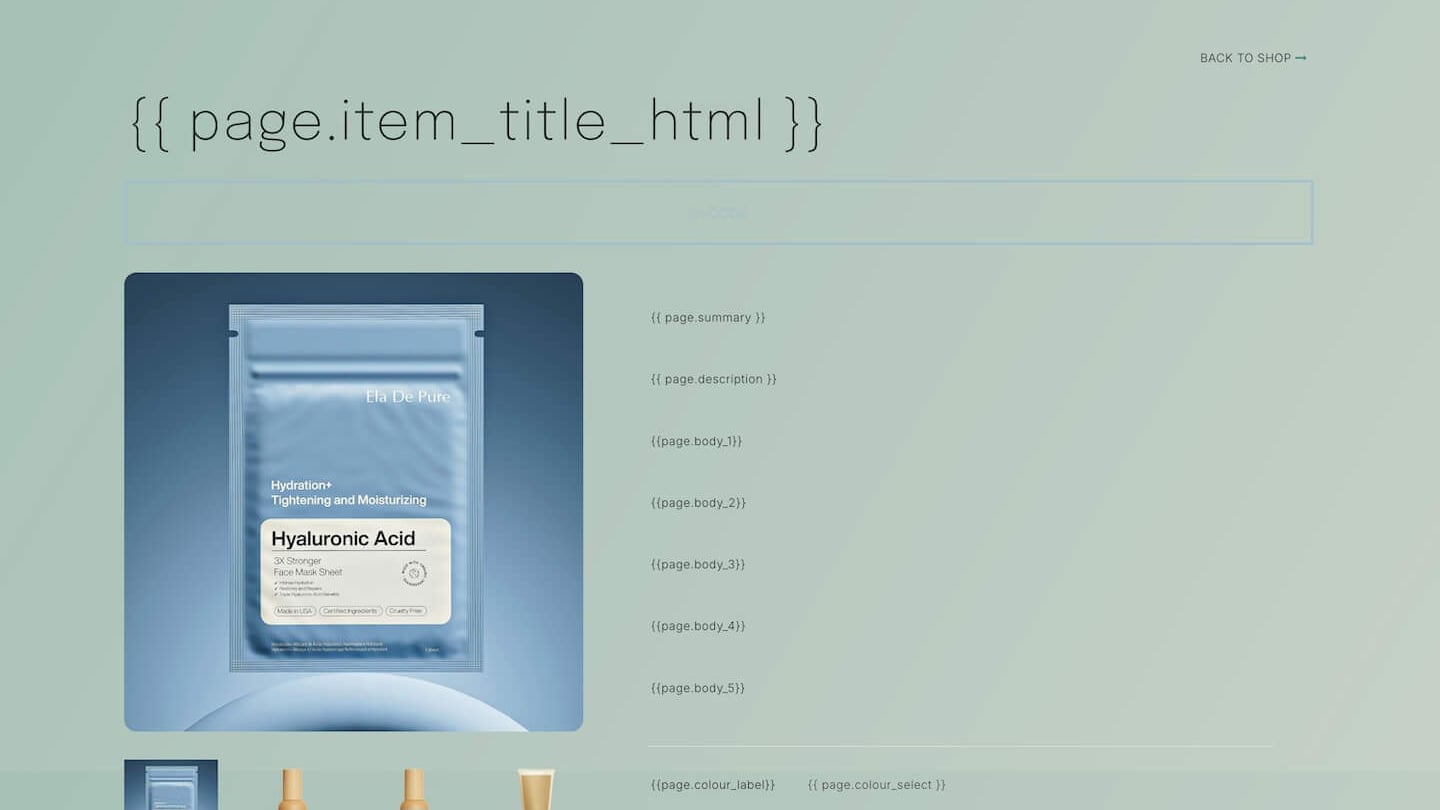
WHY DO I SEE CURLY BRACKETS?
Open a product with EDIT and the page editor shows the design with placeholders such as How do I add or edit a 'Product' in my MOBLE shop?. That's correct: your words come from the product's Settings and appear on the live page. Never delete the brackets.
RELATED HELP

Play before you Pay?
GETTING AROUND
SUPPORT
AI SALES LINE
AI SUPPORT LINE
ENQUIRIES
team@moble.com.au
GET A QUOTE
A Web Builder for Design. A CMS for Business. We serve all businesses from SME's to Enterprise. Talk with us for AI development, custom website design, website development, ecommerce websites, directories, intranets and social networks.
PRIVACY | WEBSITE TERMS | PLATFORM TERMS | © 2026 MOBLE PTY LTD