
PICK YOUR AI THEME TO GET STARTED

TEAM PERMISSIONS
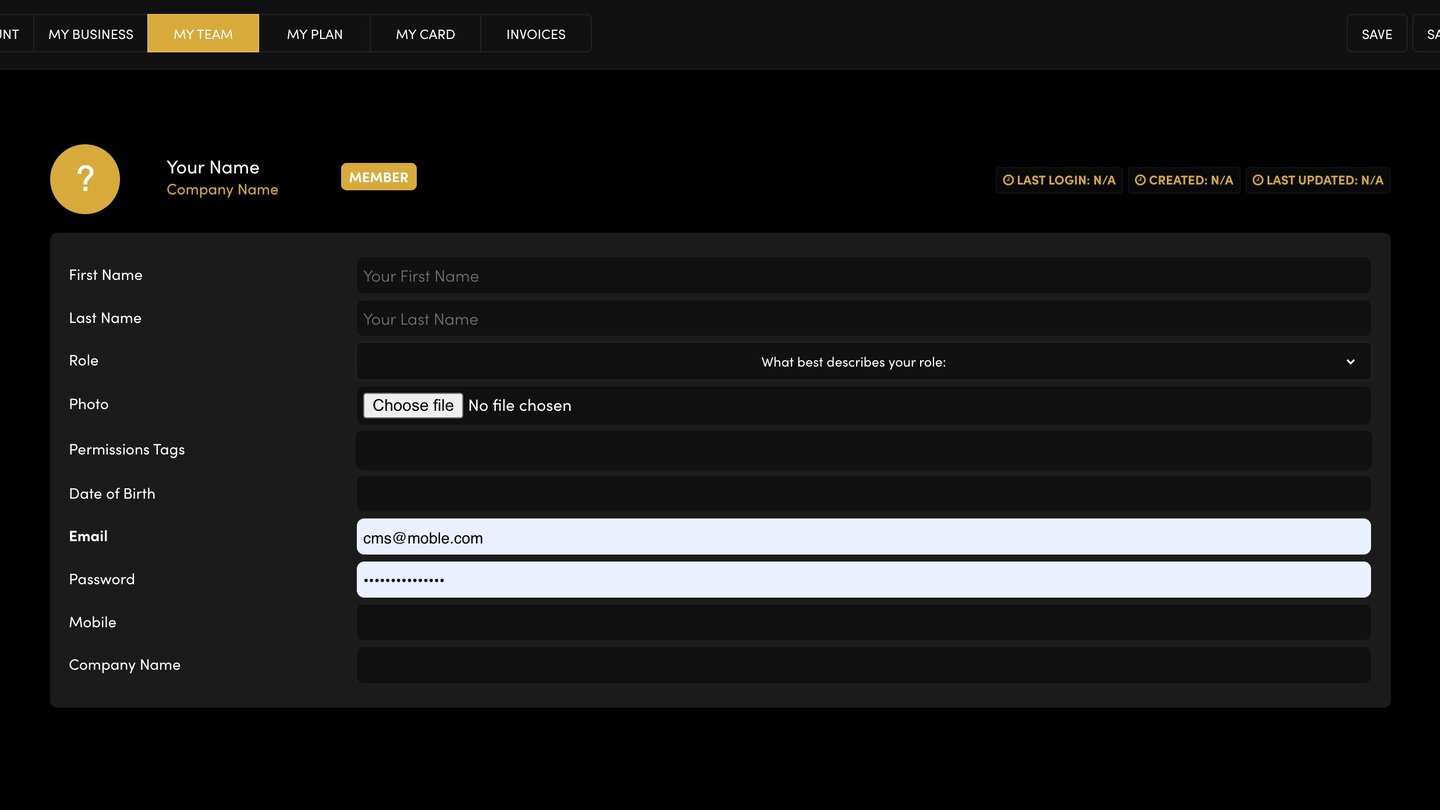
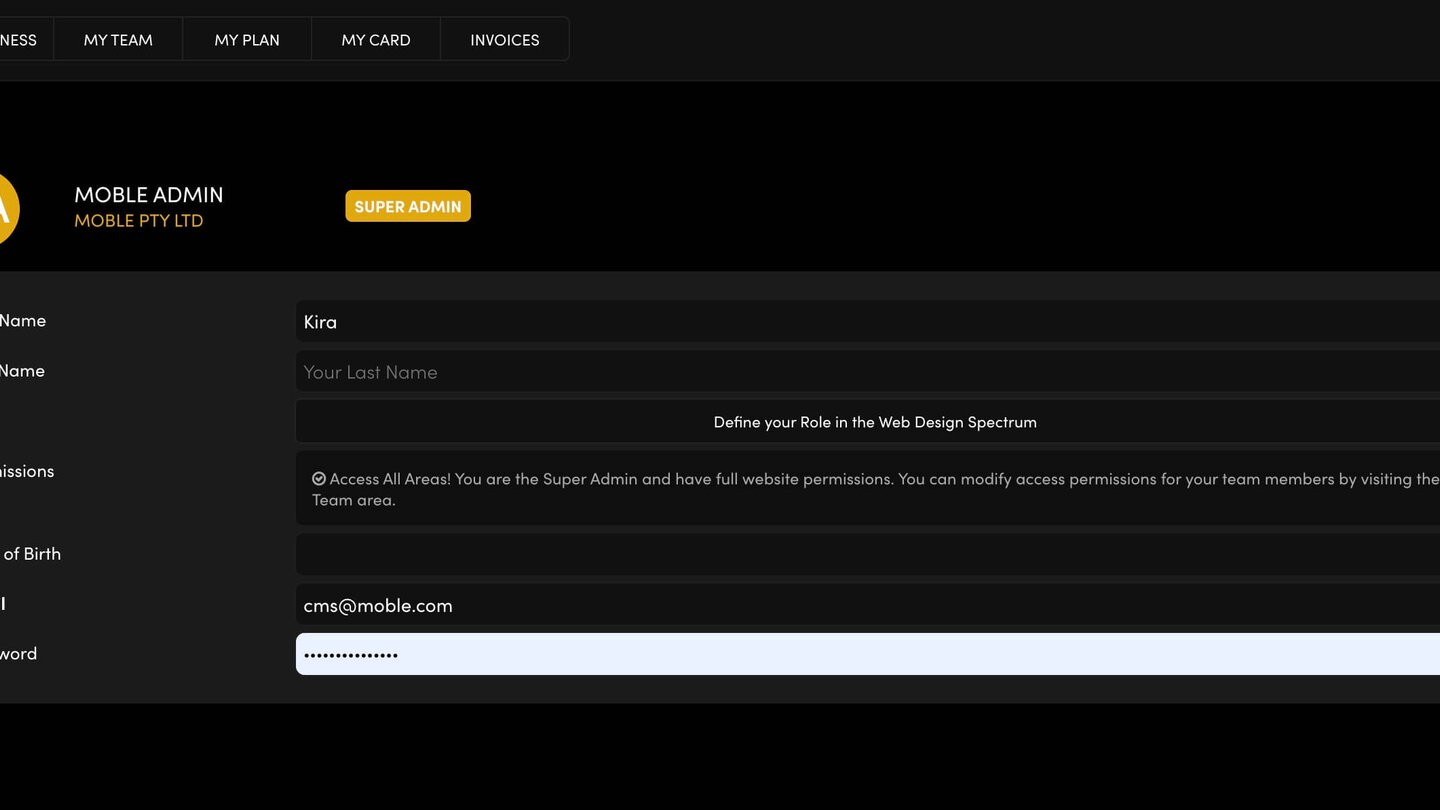
Each team member's Permissions Tags decide which areas of your website they can open. Use them to give a staff member, freelancer or agency partner only what they need.
HOW IT WORKS
- No tags = access to all areas. A team member with no Permissions Tags can open everything.
- One tag = only that area.
- Two tags = only those two areas, and so on.
THE AREAS YOU CAN CHOOSE
Dashboard, Navigation, Pages, Files, Tags, Widgets, Styles, Forms, Contacts, Settings, Orders, Transactions and Plans.
Pages currently also covers your products.
SET OR CHANGE THEM
- When you add someone: choose them in Permissions Tags on the Add People screen, then SAVE & EXIT.
- For someone already on your team: click the PERMISSIONS TAGS box on their row in the MY TEAM list, pick the areas, then press SAVE. Or press EDIT on their row.
- Refresh the list and check their tags.
EXAMPLE
An agency partner who only edits your pages and images: give them Pages and Files.
FIND PEOPLE BY PERMISSION
On the MY TEAM list, type an area in Permissions and press SEARCH. Permission Combos sets whether people can match any of the permissions you type.
RELATED HELP
Play before you Pay?
GETTING AROUND
SUPPORT
AI SALES LINE
AI SUPPORT LINE
ENQUIRIES
team@moble.com.au
GET A QUOTE
A Web Builder for Design. A CMS for Business. We serve all businesses from SME's to Enterprise. Talk with us for AI development, custom website design, website development, ecommerce websites, directories, intranets and social networks.
PRIVACY | WEBSITE TERMS | PLATFORM TERMS | © 2026 MOBLE PTY LTD