
PICK YOUR AI THEME TO GET STARTED
Choose an Award Winning AI Website theme, then just pay $9 hosting to unlock the full AI tools and customise everything.
Build: a $50-$50k AI Website
Free: Theme, 5,000 Layouts, and Course
Includes: AI Chatbots, Voicebots and AI Automations
Become: the AI Manager and Web Designer
Earn: life changing passive income with an AI Agency

YOUR MOBLE INVOICES
Invoices lists every invoice MOBLE has sent you for your plan, with your balance and your next payment date at the top.
WHAT'S ON THE SCREEN
- BALANCE (INC GST) — a minus amount in red is what you owe.
- NEXT PAYMENT DATE.
- PAY OUTSTANDING AMOUNT.
- The list: INVOICE #, DATE, NAME (the plan), AMOUNT, STATUS (Pending or Paid) and a DOWNLOAD button on every row.
DOWNLOAD AN INVOICE
- Find it in the list, or type in Keywords and press SEARCH.
- Press DOWNLOAD on its row.
PAY WHAT'S OWING
- Press PAY OUTSTANDING AMOUNT at the top right and follow the steps.
- Refresh Invoices and check the invoice now says Paid.
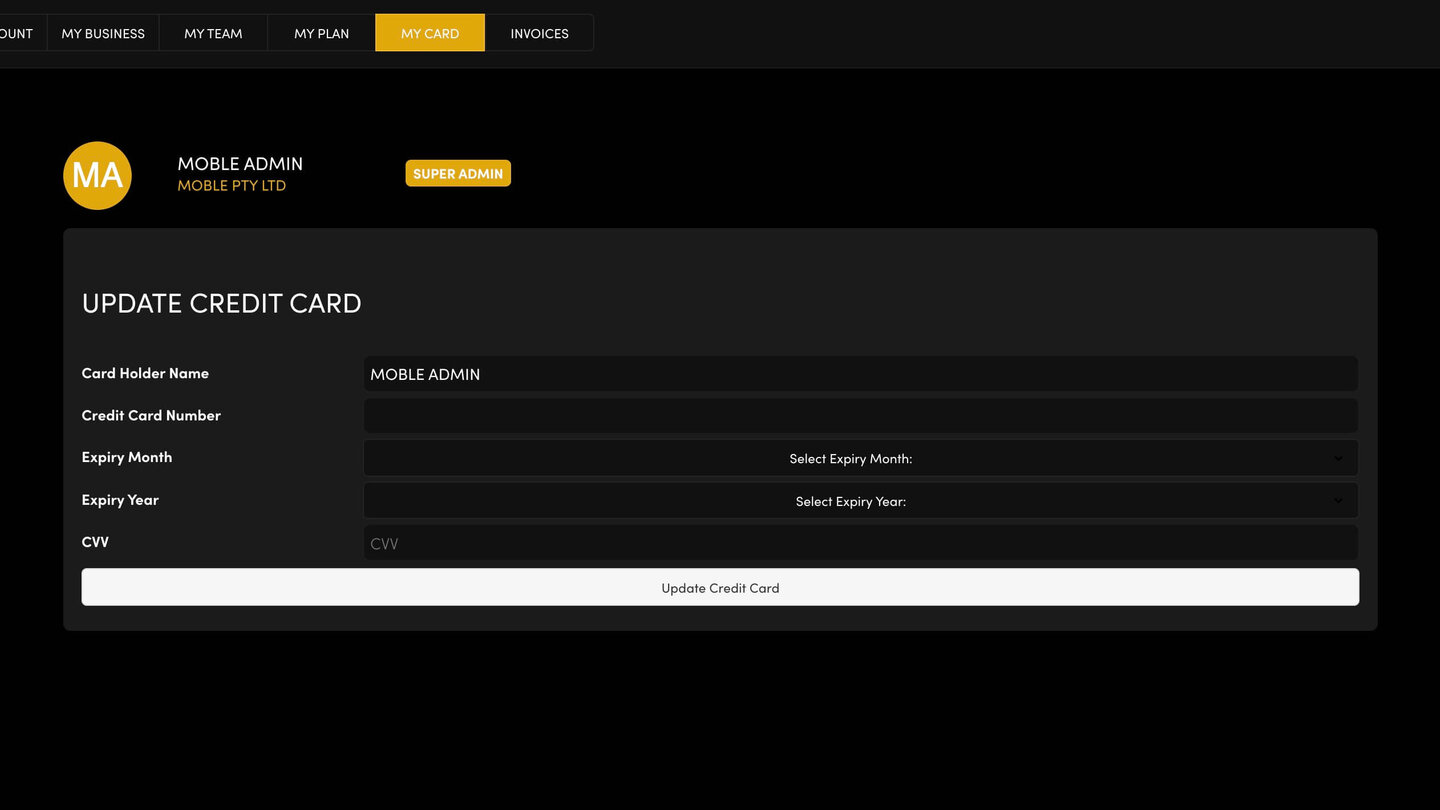
- If your card needs updating first, go to MY CARD.
YOUR BUSINESS NAME OR ABN
Your Company Name and Business Number are on MY BUSINESS. If you need a past invoice corrected, or think you've been charged twice, contact the MOBLE team.
RELATED HELP
Play before you Pay?
Brand an AI Website and Chatbot Theme in under 3 minutes, anyone can do it!!
GETTING AROUND
SUPPORT
AI SALES LINE
AI SUPPORT LINE
ENQUIRIES
team@moble.com.au
GET A QUOTE
A Web Builder for Design. A CMS for Business. We serve all businesses from SME's to Enterprise. Talk with us for AI development, custom website design, website development, ecommerce websites, directories, intranets and social networks.
PRIVACY | WEBSITE TERMS | PLATFORM TERMS | © 2026 MOBLE PTY LTD