
PICK YOUR AI THEME TO GET STARTED

TICKETS
Tickets is your support board. Every support request becomes a ticket that moves through stages from 0 - New Ticket to 10 - Result.
THE SUPPORT STAGES
- 0 - New Ticket (called 0 - Received on the Automations screen)
- 1 - Rostered · 2 - Retired · 3 - Resting · 4 - Reopened
- 5 - Raised — escalated. The base automation Support: Ticket Escalation Alert watches this stage.
- 6 - Rolling · 7 - Reaction · 8 - Review
- 9 - Resolved — the base automation Support: Ticket Resolved watches this stage.
- 10 - Result
THE TICKETS LIST
Open CRM and click TICKETS. Filter by Search, Owner, Status, Tags, Source and a date range.
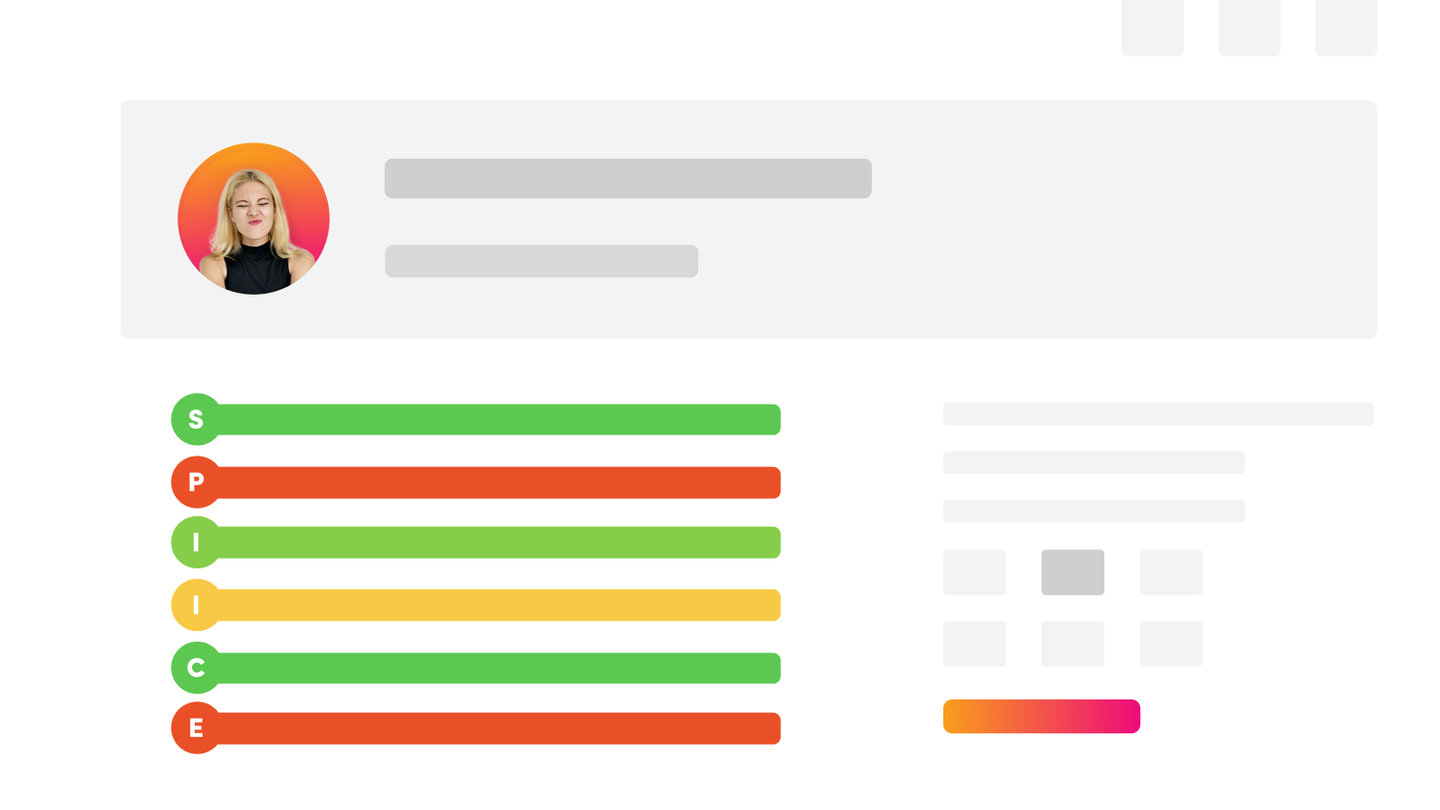
Each row shows an ICON (the first file on the ticket), the ticket NAME, the SPI SCORE, the owner, company, date, due date, the person's details, the source and tags (for example BUG).
Click ADD to add a ticket by hand.
EDITING A TICKET
Click EDIT. The edit screen has three tabs: TICKET, COMPANY and CONTACT. The top shows when it was Created, the Action date and the Resolved date.
The TICKET tab holds Name, Category, Status, Priority, Importance, Owner, the Enquiry text, Notes, Date (Action), Date (Resolved), Time (Estimated), Time (Total), Tags, Member Groups, Source, Resolution and File URL 1–5.
The right-hand column shows the Enquiry Log for that person and company.
WHERE TICKETS COME FROM
A ticket is created when someone uses a support form or talks to a Support Ticket AI Chatbot. The enquiry is always saved in Enquiries too.
AUTOMATIONS FOR TICKETS
Base automations can alert your team to a new ticket, confirm the ticket to the person, remind you when a ticket sits idle for 4 hours, alert you when a ticket is escalated (5 - Raised) and tell the person when it is resolved (9 - Resolved). See Automation Skills.
RELATED HELP


Play before you Pay?
GETTING AROUND
SUPPORT
AI SALES LINE
AI SUPPORT LINE
ENQUIRIES
team@moble.com.au
GET A QUOTE
A Web Builder for Design. A CMS for Business. We serve all businesses from SME's to Enterprise. Talk with us for AI development, custom website design, website development, ecommerce websites, directories, intranets and social networks.
PRIVACY | WEBSITE TERMS | PLATFORM TERMS | © 2026 MOBLE PTY LTD